
Difficulty level: 2 (simple, but requires the use of a soldering iron)
 Printer-friendly assembly instructions in pdf format
New! See detailed step-by-step assembly instructions video on our YouTube channel.
If you want to purchase one of these simple inexpensive kits, click here.
If you want to understand how they work, click here.
Read all instructions carefully and check the Safety Rules before you start!
Instructions
- Insert the T-pin into one of the caps.

- Insert the rotor core into the same cap as shown below. Apply some pressure to push the rotor core approximately 1/2″ (10-12 mm) into the cap.
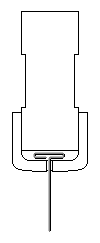
- Put in the wooden insert.

- Insert the pushpin into the other cap until it is fully seated and the end of the pushpin sticks out approximately 1/4″ (6-7 mm). You may need to push it hard.

- Put everything together as shown below. Push the caps towards each other until they cannot move any more. The T-pin must be secured firmly. This process may require some strength. Be careful not to bend the T-pin or poke yourself.

- Glue the magnets to the flat surfaces of the rotor core with the letter ‘S’ facing outside (or a dimple facing inside). Your kit includes 4 magnets. If you want to try 2 magnets first, glue them to the opposite sides. Straighten the T-pin if necessary. You can check it by spinning the rotor between your thumb and index finger. Again, be very careful.
All kits have magnets with one of the poles marked with either a letter ‘S’ on the South pole or a dimple on the North pole. If you want South side to look better, you may cut out the white glossy round labels that are provided and paste them. You may do it before attaching the magnets to the rotor. It is recommended to use regular white glue or a glue stick on the labels for better results.

- Insert the rotor into the stands marked with blue and silver stars as shown below. Hold the stands and test to see if rotor spins freely. Make final adjustments to the T-pin if necessary.

- IMPORTANT: If you plan to attach propeller to your motor try to glue the stand with the blue star as close to the edge as possible. You may need to shift the whole rotor assembly.
Glue the stand with the silver star to the board. Try to cover the corresponding star completely. Align the marks on the stand with the line on the board as shown below. Note that the star’s position and the marks are approximate, sometimes you need to move the stands slightly to achieve the lowest friction. Keep in mind that super glue bonds instantly, so try to be as accurate as possible in these procedures.

- Insert the rotor into the stand marked with the blue star. Glue it to the board the same way as the first stand. Leave a gap of about 1/16″ (1/32″, or 0.8 mm on each side) between the rotor and the stands. Test again to see if the rotor spins freely. At this time, or later, you may take the rubber plug and fix it as shown below. You can glue different things to the outer flat surface of the plug. Try to be accurate, redo this step if necessary.

- If you purchased the wire comparison kit, instead of steps 10-12 for this kit, follow instructions for wire comparison kit. After that, please, continue the assembly instructions from step 13.
Otherwise, insert the nail into the stand with the green star. If it is loose you may apply glue as shown below.

- Cut two pieces of wire 9″ (22-23 cm) long. Leave them for now – they will be used for connecting the reed switch. All remaining wire on the spool should be used to wrap around the area between the tape and the head of the nail.
- Tape one end of wire leaving about 6″ (15 cm) open. You may use the tape that is already on the nail.
- Wind all the wire in one rotational direction (either clockwise or counterclockwise) moving back and forth along the nail. Try to be as accurate as possible. Do not let the wire slide off the end of the electromagnet.
- Tape the second end of the wire using the same tape. Both open ends of wire should be about 6″ (15 cm) long.
- Clean about 1″ (2-3 cm) of the wire tips with fine sandpaper (included) or a sharp knife to remove the insulation.
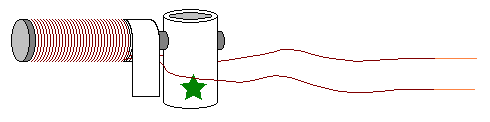
Test the electromagnet! Connect one wire to “+” and another wire to “-” of the battery. If electromagnet is assembled correctly the head of the nail should attract metal objects such as paper clips, small nails, knife blade, etc.
- Glue the electromagnet to the board as shown below. Turn the rotor slowly to see if the magnets hit the electromagnet. If one or more do, move the electromagnet back until there is a 1/16″ (1.5 mm) gap between the electromagnet and the closest magnet on the rotor.

- For Kit #5 attach the self-sticking felt pad to the reed switch stand as shown on the left picture below. The picture on the right side shows how to attach the felt pad to the universal reed switch/Hall effect switch stand for Kit #8. This soft pad decreases the reed switch vibration thus decreasing the sound it generates.

-
You may add a ZNR if you want to experiment with higher voltages or make more reliable motor. The ZNR is a small electronic part that absorbs the spark inside the reed switch. In our experiments the ZNR provided an additional reed switch protection even in the motor with the transistor.
The ZNR is not required for the motor to work. You may also add it later. However if you decided to add the ZNR at this time skip this step and go to step 15.
Take the two pieces of wire you cut earlier and clean the wire tips using sandpaper to remove the insulation. Clean about 3/8″ (10 mm) on both ends of each wire piece. Solder these wire pieces to a reed switch as shown in the first picture. If you did not use a soldering iron before it is a good idea to practice on soldering two pieces of wire to each other. See the Links page at our web site for tips on soldering.
Insert the reed switch wires as shown in the picture in the middle row. Note that the position of the reed switch in Kit #5 differs from its position in Kit #8. Be careful not to break the reed switch, it is very fragile. Twist the wires as shown in the picture in the bottom row. Use the left or right pictures according to the kit you purchased.


-
If you decided to add the ZNR at this time follow these instructions otherwise skip this step:
Take the two pieces of wire you cut earlier and clean the wire tips using sandpaper to remove the insulation. Clean about 3/8″ (10 mm) on both ends of each wire piece. Solder these wire pieces to a reed switch and the ZNR as shown in the first picture. If you did not use a soldering iron before it is a good idea to practice on soldering two pieces of wire to each other. See the Links page at our web site for tips on soldering.
Insert the reed switch wires as shown in the picture in the middle row. Note that the position of the reed switch in Kit #5 differs from its position in Kit #8. Be careful not to break the reed switch, it is very fragile. Twist the wires as shown in the picture in the bottom row. Use the left or right pictures according to the kit you purchased.

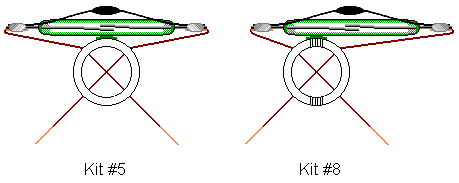

- Use rubber band to prevent the reed switch from moving.

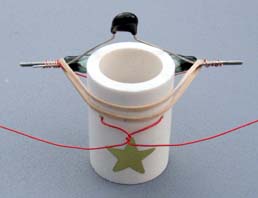
-
Glue the reed switch holder to the base. It should be located at a distance of about 1/8″ (3 mm) from the closest magnet covering the gold star on the board. However, disregard the gold star position for Kit #8, as in this case the universal stand should be located in front of the magnets. Check the rotation of the rotor to see that it does not hit the reed switch.
IMPORTANT: The most sensitive part of the reed switch is not in the middle of it, but more to the side as shown below. You should hear the clicking sound when each magnet passes by the reed switch, otherwise move the reed switch a little closer to the magnets.

- Attach the battery holder to the board. The battery holder allows you to experiment with 4 different voltage settings (1.5, 3, 4.5, and 6 V DC). You will need 4 AA size batteries.
To understand how the jumper wire works let’s take a look at the connections inside a typical battery holder:

The following diagram shows how to get 1.5, 3, 4.5, and 6 Volts using 1, 2, 3, or 4 batteries and a jumper wire shown in blue color. Arrows show the current flow for 1.5, 3, and 4.5 Volts settings. Could you trace the current when all 4 batteries are inserted (there is no jumper wire in this case)?

Inspect your battery holder – it may have different connections inside. In this case you can still use the jumper wire in the same manner to get all 4 voltages, but you will need to find appropriate connection points for each voltage setting.
Insert bare ends of the jumper wire between the spring and plastic case to make a good contact and hold them in place. This is how the jumper wire is actually used for 1.5 Volts experiments (one end is disconnected and may serve as on/off switch):

- Locate the base (B), collector (C) and emitter (E) leads on the transistor.
IMPORTANT: do not overheat the transistor when you solder it. The soldering iron heat may destroy the transistor. If you were unable to attach the wire in 4 seconds, let the transistor cool off, and then try it again. Only solder one lead at a time and allow the device to cool before soldering the next connection. The transistor will most likely be extremely hot during this process, be careful not to burn you fingers.

- Follow these steps using the wiring diagram for Kit #5 below. You may trim the wires if necessary.
- Glue the transistor with branded side down to the board using a small drop of super glue.
- Solder the negative (black) wire of the battery holder and one of the reed switch wires to the collector of the power transistor. You may twist the wires together before soldering.
- Solder the other reed switch wire to the base of the transistor.
- Before soldering the electromagnet wires insert batteries into the battery holder. Briefly connect one wire from the electromagnet to the positive (red) battery holder wire and the other electromagnet wire to the emitter as shown below. If the electromagnet doesn’t repel the permanent magnets away, switch the wires.
- If the motor works, remove the batteries and solder the electromagnet wires.
- You may tape the wires to the board using scotch tape.

- You may connect a capacitor as shown in the diagram above. Do not forget to remove the insulation from the magnet wire before soldering. It is not a required part for the motor to work, but it may prolong the life of the reed switch. However using the ZNR as shown in step 15 usually provides better results.
Start with 1.5 V. If the motor does not work, increase voltage to 3 V. If it still doesn’t work, ensure that the rotor can rotate freely and check all the connections – it is important to clean the insulation thoroughly before soldering. Make sure the batteries are fresh and connected properly. If the motor still does not work – check Troubleshooting section of our web site.
CAUTION: Do not leave the motor connected to the batteries if the rotor is stalled. High current through the transistor will make it very hot. It may burn your fingers if you touch it and eventually may destroy the transistor.
It is easy to change and control the speed of this motor with only a few additional parts. Experimentation kits allow you to add a speed control unit and conduct other experiments.
No comment yet, add your voice below!